
Shizuku
Screenshots
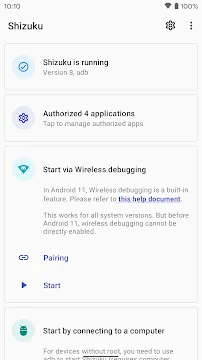
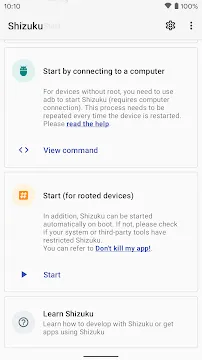
Shizuku is a powerful tool for Android users who want more control over their devices. It acts as a bridge between standard applications and system-level permissions. Normally, Android limits what apps can do to protect the system. Shizuku changes this by allowing apps to use specialized Application Programming Interfaces (APIs) directly. It does this without requiring you to root your phone, which is a major advantage for many people.
This application is essential for anyone using advanced customization tools or system managers. It provides a secure way to run commands that usually require a computer and a USB cable. By using Shizuku, you can unlock hidden features in your favorite apps. It works by running a small service in the background that handles these high-level requests. This makes your Android experience much smoother and more flexible.
Understanding Shizuku for Android
If you use an Android phone, you might want more control over your device. Usually, this means you must “root” your phone. However, rooting can be risky and difficult. This is where the Shizuku app changes everything.
What is the Shizuku App?
Shizuku is a clever tool that lets other apps use system-level files. It acts as a bridge between your apps and the Android system. It uses a special feature called the Android Debug Bridge (ADB).
In the past, only the system or a “rooted” user could touch certain settings. Shizuku opens these doors without breaking the system’s locks. It allows your favorite apps to perform advanced tasks that normal apps cannot do.
No Root Required
The biggest draw of Shizuku is that it does not need root access. Rooting often voids your warranty. It can also stop banking apps from working. Shizuku avoids these headaches entirely.
You set it up using wireless debugging or a computer. Once it starts, it stays active until you reboot your phone. This makes it perfect for people who want extra features but want to keep their phone’s software original and official.
Works System-Wide
Shizuku is not just a simple utility. It provides a platform for other apps to gain “superpowers.”
- File Managers: They can access data folders that are usually hidden.
- System Customizers: They can change themes or fonts without a reboot.
- App Managers: They can freeze or uninstall bloatware that the manufacturer installed.
Because it works across the whole system, one Shizuku setup helps many different apps at once. It makes your entire Android experience feel more open and flexible.
Safer Than Root
Safety is a major concern for smartphone users. Rooting gives an app “God mode” over your device. If a malicious app gets root access, it can steal everything.
Shizuku is much safer for several reasons:
- Limited Permissions: It only accesses what is necessary via ADB.
- User Control: You must manually allow every app that wants to use Shizuku.
- No System Partition Changes: It does not modify the core system files. If something goes wrong, you simply restart your phone.
How Shizuku Compares to Root
While both tools give you more power, they work very differently.
The Root Method
Rooting changes the actual code of your operating system. It allows deep changes but breaks the “Chain of Trust” for security. It is hard to hide from apps that check for security, like Google Pay or Pokémon GO.
The Shizuku Method
Shizuku uses the developer tools already built into Android. It is like using a VIP pass instead of picking the lock. It is “cleaner” and does not trigger most security alarms.
Key Differences to Remember:
- Security: Shizuku keeps your bootloader locked, while root often requires it to be unlocked.
- Ease of Use: You can start Shizuku in minutes. Rooting can take hours and might “brick” your phone.
- Updates: You can still receive official Android updates with Shizuku. Rooting often blocks these updates.
Why You Should Try It
Shizuku bridges the gap between a standard user and a developer. It gives you the freedom to customize your device. You can manage files better and remove unwanted apps easily. Most importantly, it keeps your data safe and your warranty intact. If you want to explore the hidden potential of your Android phone, Shizuku is the best place to start.
Shizuku App Prerequisites: How to Prepare Your Android Device
Getting the Shizuku app running on your Android device unlocks a new level of control. It allows apps to perform advanced system-level tasks without needing a full root. However, you must set up your device correctly before you can use it. This guide covers everything you need to know about the prerequisites for Shizuku.
Check Your Android Version
First, you must verify your software. Shizuku works best on modern versions of Android.
- Android 11 and Above: These versions are ideal. They support Wireless Debugging, which makes the setup process much faster. You do not need a computer if you have Android 11 or higher.
- Android 10 and Below: You can still use the app on older versions. However, you will need a computer and an ADB (Android Debug Bridge) connection to start the service.
- Check Your Settings: Open your Settings app, go to About Phone, and look for Android Version.
Enable Developer Options
You cannot use Shizuku with standard factory settings. You must unlock the hidden Developer Options menu first.
- Open your device Settings.
- Navigate to About Phone.
- Find the Build Number entry.
- Tap on the Build Number seven times rapidly.
- Enter your PIN or pattern if prompted.
- You will see a message saying “You are now a developer.”
Now, you can find this new menu under System or Additional Settings.
Configure USB and Wireless Debugging
Shizuku relies on the Android debugging system to communicate with your OS. You must toggle specific switches inside the Developer Options menu.
USB Debugging
Enable this if you plan to use a PC to start Shizuku. It allows the computer to send commands to your phone via a cable. Locate USB Debugging in the Developer Options list and switch it on.
Wireless Debugging
If you are on Android 11 or later, look for Wireless Debugging. This is the preferred method. It allows Shizuku to start itself directly on the device. Ensure your phone is connected to a stable Wi-Fi network before toggling this switch.
How To Download And Install Shizuku APK For Android
Getting the Shizuku APK onto your Android device is the first step toward advanced system customization. This process allows you to run specialized apps that usually require root access. Fortunately, installing Shizuku is straightforward if you follow the right steps. This guide explains how to find the file and install it safely on your smartphone.
Step 1: Prepare Your Device for the APK
Android devices naturally block apps that come from outside the official store. You must change your settings to allow this installation.
- Open the Settings app on your phone.
- Scroll down and select Security or Privacy.
- Look for an option labeled Install Unknown Apps or Unknown Sources.
- Select the web browser you plan to use for the download.
- Toggle the switch to Allow from this source.
By doing this, you give your browser permission to handle the installation file. This step is vital for a smooth setup.
Step 2: Download the Shizuku APK
Now you need to get the actual file. It is important to find a clean version of the app to protect your privacy.
- From your mobile web browser.
- Navigate to Shizuku download page.
- Click the Download button on the page.
- Wait for the progress bar to finish.
Keep an eye on your notification bar. Your phone will alert you once the download is complete. Avoid clicking on flashy ads that look like download buttons. Stick to the primary links provided by the host site.
Step 3: Install the Shizuku Application
Once the download finishes, you can begin the installation. This part moves very quickly.
- Tap the Download Complete notification in your tray.
- If you missed the notification, open your File Manager app.
- Go to the Downloads folder.
- Locate the file named Shizuku.apk.
- Tap on the file to open the installer.
- A prompt will appear asking if you want to install the app.
- Select Install at the bottom of the screen.
Your phone will scan the package for any security risks. After a few seconds, you will see a message saying “App Installed.”
Step 4: Initial Launch and Permissions
Now that the app is on your device, you need to open it and grant basic permissions.
- Find the Shizuku icon on your home screen or app drawer.
- Tap the icon to launch the application.
- The app may ask for storage access to manage its files.
- Grant these permissions so the app can function correctly.
- Look at the main screen to see the service status.
Initially, the app will show that the service is not running. This is normal. You have successfully installed the interface. Now you just need to activate it using your developer settings.
Shizuku: Activation Methods
Activating Shizuku on your Android device allows you to use powerful apps that normally require root access. Shizuku works by using the Android Debug Bridge (ADB) to grant these apps higher permissions. Depending on your hardware and software version, you can choose one of three main methods to get it running. Follow these steps to set up the service correctly.
Method 1: Activation via ADB and Computer
This is the standard approach for devices running older versions of Android. It is also a very stable way to start the service if you have a PC nearby.
- Prepare your hardware. Connect your Android phone to your computer using a high-quality USB cable.
- Enable USB Debugging. Go to your phone settings and find Developer Options. Switch on the toggle for USB Debugging.
- Set up ADB on your PC. Ensure you have the platform tools installed on your computer. Open a command prompt or terminal window in that folder.
- Verify the connection. Type adb devices in the terminal. You should see your device ID appear. If a prompt appears on your phone, tap “Allow.”
- Enter the command. Copy the specific start command from the Shizuku app. Paste it into your terminal and hit enter.
- Confirm activation. Look at the Shizuku app on your phone. It should now show that the service is running.
Method 2: Wireless Debugging (Android 11 and Higher)
If your phone runs Android 11 or later, you do not need a computer. You can activate the service directly through your Wi-Fi connection.
- Connect to Wi-Fi. Ensure your phone stays on a stable wireless network throughout this process.
- Enable Wireless Debugging. Open Developer Options in your settings. Find the Wireless Debugging option and turn it on.
- Enter Pairing Mode. Tap on the “Wireless Debugging” text to see more options. Select “Pair device with pairing code.” A six-digit code will appear on your screen.
- Start the pairing in Shizuku. Open Shizuku and tap the “Pairing” button. Enter the code shown in the system settings into the Shizuku notification box.
- Start the service. Once paired, return to the main Shizuku screen and tap “Start.” The app will now initialize its own background process.
Method 3: Activation via Root Access
This is the easiest method if you have already rooted your device with Magisk or KernelSU. You do not need a computer or debugging menus for this.
- Open the Shizuku app. Simply launch the application from your home screen.
- Locate the Start button. Find the section labeled “Start (for rooted devices).”
- Grant Superuser permission. Tap the “Start” button. A popup from your root manager will appear. Tap “Grant” or “Allow.”
- Automatic setup. Shizuku will automatically configure the environment. The service will start within a few seconds.
Crucial Tips for Success
Regardless of the method you choose, keep these rules in mind to maintain the connection.
- Disable Battery Optimization. Android might close Shizuku to save power. Go to your app settings and set Shizuku to “Unrestricted” battery usage.
- Keep Developer Options Active. If you turn off Developer Options, the debugging permissions will reset. This stops the service immediately.
- Restart After Rebooting. Unless you are rooted, Shizuku will stop whenever you restart your phone. You must perform the activation steps again after every reboot.
- Check App Permissions. When you open an app that needs Shizuku, it will ask for access. Always select “Allow” to let that app communicate with the service.
By following these steps, you can safely manage system-level features without the risks of a traditional root. This setup provides a clean and efficient way to customize your Android experience.
Shizuku for Android: First 5 Things to Do After Activation
Once you activate Shizuku on your Android device, you gain access to many hidden features. This tool allows you to modify your phone without the risks associated with rooting. However, simply starting the service is only the beginning. You should now take specific steps to improve your device’s performance and appearance. Here are the first five things you should do after setting up Shizuku.
1. Verify Your Access with aShell
The first step involves making sure the service works correctly. You can use a terminal app called aShell to test your connection. This app uses the Shizuku interface to run commands that usually require a computer.
- Install aShell: Download the app and grant it permission to use Shizuku.
- Run a Test Command: Type pm list packages into the command line.
- Check the Results: If you see a long list of all the apps installed on your phone, your setup is successful.
This process confirms that Shizuku can interact with your system. It proves you have the power to manage your device at a deeper level.
2. Control Background Apps with App Ops
Many apps run in the background even when you are not using them. These “battery hogs” drain your power and slow down your processor. You can use an app called App Ops to manage these hidden behaviors.
- Open App Ops: Launch the app and select Shizuku as the working mode.
- Find Heavy Apps: Look for social media or navigation apps that constantly stay active.
- Revoke Permissions: Select the “Run in background” option and switch it to “Ignore” or “Deny.”
This action forces apps to stay quiet when they are closed. You will likely notice better battery life and a cooler device temperature immediately.
3. Freeze Bloatware Using Hail
Most Android phones come with preinstalled apps that you cannot delete. These are often called bloatware. While you might not be able to uninstall them entirely, you can use an app called Hail to “freeze” them.
- Select Your Target: Choose an app you never use, such as a preinstalled Facebook client or a carrier-specific tool.
- Freeze the App: Use the Shizuku-powered command in Hail to disable the app.
- Observe the Change: The app icon will disappear from your drawer. It will no longer use any RAM or battery.
Freezing is safer than uninstalling. If you ever need the app again, you can simply unfreeze it within seconds.
4. Customize Your Quick Settings via SystemUI Tuner
The default layout of your notification shade is often very limited. You might want more columns or different tile sizes. SystemUI Tuner allows you to change these visual elements using Shizuku permissions.
- Modify the Grid: You can change the number of rows and columns in your Quick Settings.
- Hide Icons: If your status bar looks cluttered, hide icons for Bluetooth, Wi-Fi, or the clock.
- Apply Changes: These edits happen instantly and do not require a system reboot.
This helps you create a cleaner and more personalized interface that matches your workflow.
5. Automate Power Savings with Tasker
Tasker is a powerful tool for automation, but it needs extra help to touch system settings. With Shizuku, Tasker can change deep settings like the Battery Saver mode automatically.
- Create a Profile: Set a trigger for when your battery reaches 30%.
- Set the Task: Use a command to turn on the “Battery Saver” mode.
- Add an Exit Task: Tell the phone to turn off the saver once you plug it into a charger.
This ensures your phone survives a long day without you having to remember to flip a switch. Automation makes your device feel smarter and more efficient.
By completing these five tasks, you turn a simple service into a total management system. Shizuku makes your Android experience faster, cleaner, and more personal.
Shizuku-Powered Apps for Android Customization
Shizuku allows your Android device to perform tasks that usually require a full root. By using the system’s own debugging tools, it grants apps permission to modify the operating system safely. Many developers use this technology to bypass common Android restrictions. These apps help you fix system limits and customize your interface with ease. Here are the top Shizuku-powered apps you should use.
Enhanced File Management
Android has strictly limited access to system folders like Android/data and Android/obb in recent versions. Shizuku helps you bypass these restrictions easily.
- ZArchiver: This famous compression tool uses Shizuku to read and write files in restricted directories. It allows you to move game data or backup app files that the standard file manager hides.
- FV File Explorer: This modern explorer integrates Shizuku to provide full filesystem access. It helps you manage internal storage with the same freedom you would find on a desktop computer.
Effortless System Debloating
Most phones come with pre-installed apps that you cannot uninstall. These “bloatware” apps waste space and battery life.
- Canta: This tool is the best way to clean your device. It identifies safe-to-remove apps and uninstalls them for the current user. Since it uses Shizuku, you do not need to connect your phone to a PC every time you want to remove an app. It also offers a restore feature if you accidentally delete something important.
Advanced UI Customization
Modern Android versions use the Material You design system. While it looks good, users often want more control over the colors and icons.
- ColorBlendr: This app provides deep control over your system’s color palette. You can manually override accent colors, adjust saturation, and even enable a true pitch-black theme for OLED screens.
- SystemUI Tuner: This utility modifies hidden settings in the Android interface. You can use it to hide annoying status bar icons, like the clock or the Wi-Fi signal. It also unlocks legacy settings that manufacturers often hide from the user.
Modern App Management
As Android evolves, it often prevents you from installing older software. Shizuku-powered managers solve this problem.
- Install with Options: Android 16 and older versions often block apps with a low “Target SDK.” This app allows you to ignore those limits. You can install vintage apps or downgrade to older versions of current apps without using a computer.
- Hail and FreezeYou: These apps improve your battery life by “freezing” background processes. When you stop using an app, Hail disables it completely so it cannot run in the background. Once you tap the icon again, it defrosts and works perfectly.
Powerful Automation
Automation apps allow your phone to perform tasks automatically based on triggers. Shizuku gives these tools “shell” permissions for deeper control.
- MacroDroid: This app uses Shizuku to perform actions like toggling GPS, changing system languages, or killing background tasks. It makes complex automation easy to build.
- Tasker: The most advanced automation tool on Android uses Shizuku to execute secure settings commands. This allows Tasker to modify almost any part of the OS without needing a root.
Using these Shizuku-powered apps allows you to reclaim ownership of your hardware. You can remove unwanted software, customize every pixel, and automate your daily routine with just a few taps.
Shizuku for Gaming: Performance & Optimization
Mobile gaming on Android has become more demanding than ever. Players want high frame rates and perfect control. However, many phones limit how hardware performs during intense gaming sessions. Shizuku offers a way to unlock your phone’s full potential without the risks of rooting. By granting system-level permissions to specialized tools, you can optimize your gaming experience for better speed and responsiveness.
Refreshing the Refresh Rate
Many modern Android phones feature screens with 120Hz or 144Hz capabilities. Unfortunately, the operating system often throttles these rates to 60Hz to save battery life. This happens frequently in games that actually support higher motion.
- Force High Refresh Rates: You can use Shizuku-linked apps to override these system restrictions. These tools communicate with the display driver to keep the screen at its maximum speed.
- Smoother Visuals: When you force a constant high refresh rate, animations look much smoother. You eliminate the stuttering caused by the system constantly switching between different speeds.
- Competitive Edge: Higher refresh rates reduce input lag. This gives you a slight advantage in fast-paced games where every millisecond matters.
Granular Performance Profiles
Thermal throttling is a common problem for mobile gamers. When your phone gets hot, the system slows down the CPU to cool it off. This results in dropped frames and “lag spikes” during matches in titles like PUBG or EA Sports FC.
- Tweak CPU Governors: Performance apps use Shizuku to access the CPU governor settings. You can tell the phone to stay in a “Performance” mode longer before it decides to slow down.
- Manage Thermal Limits: While you should always be careful with heat, Shizuku allows apps to adjust how aggressively the phone cools itself. This prevents the sudden performance drops that ruin a gaming session.
- Custom Profiles: You can create specific profiles for different games. For example, you might want maximum power for a 3D shooter but a battery-saving mode for a simple puzzle game. Tools like Scene or certain kernel managers can handle these changes automatically through the Shizuku service.
Advanced Controller Mapping
Not every mobile game supports physical controllers natively. This is frustrating if you prefer using a gamepad over touch controls. Shizuku helps solve this by enabling advanced touch-mapping services.
- Map Physical Buttons to Touch: Mapping apps use Shizuku to simulate finger touches on your screen when you press a button on your controller. This works even in games that only allow touch input.
- Precision Targeting: Using a physical joystick for aiming is usually more accurate than sliding a thumb across glass. This setup turns your phone into a true portable gaming console.
- Bypass Restrictions: Standard mapping apps often require a PC to activate. With Shizuku, you can enable these mapping services directly on your phone. This makes it much easier to play with a controller while you are traveling.
By using Shizuku for gaming, you take back control of your hardware. You can ensure your screen stays fast, your processor stays strong, and your controller works in every single app. This setup transforms a standard smartphone into a optimized gaming machine.
How to Completely Uninstall Shizuku from Android (Step-by-Step)
Uninstalling Shizuku from your Android device is a simple and clean process. Since the app does not modify your system partition or change permanent files, it leaves no heavy traces behind. However, you should follow a specific order to ensure all background services stop correctly. This guide explains how to remove the app and reset your developer settings safely.
Step 1: Revoke Permissions from Connected Apps
Before you delete the main application, you must manage the apps that currently rely on it. Shizuku acts as a bridge for other tools. Disconnecting these apps first prevents errors or hung processes in your other software.
- Open each linked app: Visit the settings menu of any app you paired with Shizuku, such as file managers or customization tools.
- Disable Shizuku integration: Look for a toggle that says “Use Shizuku” or “Rootless Mode” and turn it off.
- Check the Shizuku manager: Open the Shizuku app itself and tap on Authorized Applications.
- Toggle off all switches: Manually revoke access for every app in this list. This ensures no third-party software tries to call the service while you are removing it.
Step 2: Stop the Shizuku Server
Shizuku runs as a background process using the Android Debug Bridge. You should stop this active service before you uninstall the interface. This step clears the temporary files from your device’s random access memory (RAM).
- Navigate to the main screen: Open the Shizuku app.
- Locate the status area: Look at the top of the screen where it says “Shizuku is running.”
- Tap the Stop button: Click the Stop icon or button.
- Verify the status: The app should now display a message saying “Shizuku is not running.” This confirms that the background service has terminated.
Step 3: Perform a Standard Uninstall
Once the service stops, you can treat Shizuku like any other regular application. It does not require special scripts or deep cleaning tools to remove.
- Find the app icon: Locate the Shizuku icon on your home screen or in the app drawer.
- Long-press the icon: Hold your finger on the icon until a menu appears.
- Select Uninstall: Tap the Uninstall button and confirm your choice by pressing OK.
- System Cleanup: Android will automatically delete the app’s cache and local data during this process.
Step 4: Reset Developer Settings (Optional)
If you only enabled Developer Options to use Shizuku, you might want to revert those changes. This keeps your settings menu clean and secures your device against unauthorized USB connections.
- Open System Settings: Go to your phone’s main Settings menu.
- Enter Developer Options: Find the menu you unlocked during the setup phase.
- Disable Debugging: Switch off the toggles for USB Debugging and Wireless Debugging.
- Revoke ADB Authorizations: Tap the option to “Revoke USB debugging authorizations” to clear the list of trusted computers.
- Turn off Developer Options: Switch the main toggle at the top of the screen to Off if you no longer need these advanced tools.
No Lingering Files
One of the best things about this tool is its self-contained nature. It does not install files into your system folders or change your recovery settings. Once you follow the steps above, your phone returns to its original state. There are no hidden folders to delete and no registry keys to worry about. Your device remains exactly as it was before you started, maintaining your full warranty and system integrity.
Frequently Asked Questions About Shizuku for Android
What is Shizuku?
Shizuku is a system service that allows apps to use Android’s hidden features. It uses the Android Debug Bridge (ADB) to grant permissions. Standard apps usually have limits. Shizuku lets these apps perform advanced tasks without a full root.
Does Shizuku require root access?
No, you do not need to root your phone. Shizuku works by using ADB commands. This makes it a safer choice for many users. However, if your device is already rooted, Shizuku can use that to start even faster.
Is Shizuku safe to use?
Yes, it is generally safe. It uses official Android developer tools to function. It does not modify your system partition. You can stop the service at any time by turning off the app or disabling developer options. Always download it from trusted app stores to stay secure.
Why does the service stop after a reboot?
Android clears all ADB processes when you restart your phone. This is a security feature. Consequently, you must restart the Shizuku service every time you turn your phone back on. Rooted users are the only ones who can avoid this step.
Does it work on all Android versions?
Shizuku supports most devices running Android 6.0 and higher. However, the setup process changes depending on your software.
- Android 11 and newer: You can use Wireless Debugging. This lets you start the app without a computer.
- Android 10 and older: You must use a USB cable and a computer to send the initial start command.
How do I grant permissions to other apps?
Once Shizuku is running, open the app you want to use. That app will ask for “Shizuku Access.” Tap “Allow” on the popup. You can manage which apps have access inside the Shizuku app menu.
Will Shizuku void my warranty?
Using Shizuku does not void your warranty. You are not unlocking the bootloader or modifying the kernel. It uses built-in developer tools that manufacturers include by default.
What happens if I disable Developer Options?
If you turn off Developer Options, Shizuku will stop working immediately. The app needs the “USB Debugging” or “Wireless Debugging” toggles to stay active. Keep these settings on if you want the service to remain stable.
Can I uninstall Shizuku after using it?
Yes. But then apps lose their extra permissions. Those apps may stop working fully. Uninstalling is simple. Go to settings, then apps, then remove it. No leftover files remain.
Why does Shizuku need a companion app?
Shizuku itself is the service. It does nothing alone. You need a second app that requests Shizuku permissions. For example, a file manager or backup tool. That companion app does the real work. Shizuku simply enables it.
Does Shizuku work on Android tablets or TVs?
Shizuku works on almost any device running a modern version of Android, including tablets and Android TV boxes. For TVs, the setup is slightly different because you might need to use a phone or PC to send the initial ADB command, as TVs often lack a traditional notification shade for pairing codes.
What is the difference between Shizuku and a full Root?
Root access gives you total control over every single file on the device, which can be dangerous. Shizuku only grants access to specific system APIs via the ADB interface. Think of Shizuku as a “professional pass” that lets you do advanced work without the risk of breaking the entire operating system.